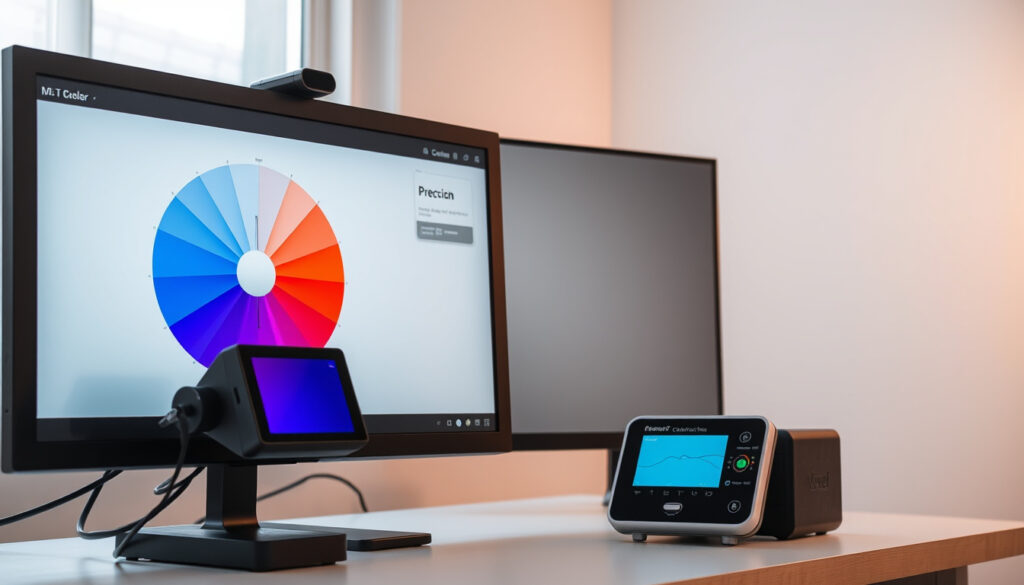
How to Calibrate Monitor: Free & Easy Methods for Accurate Color
You just opened a new photo or video project, and something feels off about how it looks on screen—maybe it’s too warm, too blue, or details in shadows vanish. That’s your monitor talking, and it’s probably lying to you, but you can calibrate it using free built-in tools, simple online patterns, and a few pro tricks on Windows, macOS, or Linux.
Recommended warm-up time: 15–30 minutes ·
Free built-in calibration tools: Windows Display Color Calibration, macOS Display Calibrator Assistant ·
Target color temperature: 6500K (D65) ·
Hardware calibrator cost range: $100–$500 ·
Delta E threshold for good calibration: < 2
Quick snapshot
- Hardware calibrators provide the most accurate results (DisplayCAL)
- Built-in OS calibrators improve color accuracy significantly (Microsoft Support)
- Warming up the monitor for 15–30 minutes before calibration is necessary (DisplayPixels)
- Phone camera-based calibration apps are less reliable than dedicated hardware (DisplayCAL project notes)
- Effect of ambient lighting on calibration accuracy without a hood (DisplayPixels calibration guide)
- No timeline events available for this topic
- Follow step-by-step calibration guides for your specific operating system
- Consider investing in a hardware calibrator for professional color-critical work
The table below summarizes the key calibration settings you will need for any monitor.
| Setting | Value |
|---|---|
| Monitor warm-up time | 15–30 minutes |
| Default color temperature | 6500K (D65) |
| Common gamma setting | 2.2 |
| Free built-in calibrator on Windows | Display Color Calibration (DCC) |
| Free built-in calibrator on macOS | Display Calibrator Assistant |
How do I tell if my monitor is calibrated correctly?
The simplest way to test is with a grayscale gradient pattern. Open a full-screen gradient that goes from black to white. If you see banding—sudden steps instead of a smooth transition—or a subtle color tint in the neutral grays (green, magenta, blue), your monitor is off. Professional calibration software like DisplayCAL (an open-source color management tool) can produce a verification report that shows Delta E values, where a number below 2 indicates excellent color accuracy. A correctly calibrated monitor should render neutral grays as purely gray across all steps, with no visible shift.
Load a near-black test pattern from sources like ScreenTester (online calibration tool) to check that the darkest details are visible without crush.
The implication: a grayscale test gives you an immediate visual check, but only a verification report from calibration software can confirm sub-2 Delta E accuracy.
Can I use my phone to calibrate my monitor?
Yes, but with important caveats. Phone camera-based apps can adjust brightness and contrast by measuring the ambient light, but they cannot produce accurate color profiles. The camera sensor and its software processing introduce their own color casts, making the measurement unreliable for critical work. Some apps, like DisplayCAL (which offers a mobile companion), provide basic gamma adjustments, but the results are consistently less accurate than built-in OS calibrators or dedicated hardware.
The implication: phone apps are a backup for casual use—fine for a quick brightness fix, not for photo editing or video grading.
How can I calibrate my monitor for free?
Free calibration is possible on every major desktop operating system, plus with online tools.
How to calibrate monitor without colorimeter
Windows and macOS include fully built-in calibration wizards that require no extra purchase. On Windows, navigate to Settings > System > Display > Color profile and select “Calibrate display,” as documented by Microsoft Support (official hardware guidance). On macOS, open System Settings > Displays > Color profile and click “Customize” to launch the Display Calibrator Assistant (Apple’s step-by-step tool). For Linux users, xcalib and colord provide basic ICC profile management at no cost, and DisplayCAL (free open-source profiler) runs on all three platforms.
How to calibrate monitor with color bars
Online test patterns like the Lagom LCD test or the ScreenTester tool let you manually adjust brightness, contrast, and gamma by eye. Set your monitor to sRGB mode (or manually set the color temperature to 6500K) and gamma to 2.2, as recommended by ScreenTester (online calibration guide). The common target gamma of 2.2 is the cross-platform standard for color-accurate work, according to DisplayPixels (third-party calibration guide).
Free visual adjustment is a compromise: you’re tuning by eye, not by measurement. The result will be better than an out-of-box monitor, but it will not match hardware-calibrated precision for color-critical projects.
The pattern: free tools can get you close to accurate color, but they rely on your eye rather than measured data and cannot guarantee sub-2 Delta E results.
What is the easiest way to calibrate a monitor?
For most users, the built-in OS calibration wizard is the simplest route. No downloads, no extra purchases—just follow on-screen prompts to adjust gamma, brightness, and color balance step by step. Follow these general steps regardless of your operating system:
- Warm up your monitor for 15–30 minutes before starting.
- Reset your display to factory defaults or neutral settings via the OSD menu.
- Set the display to its native resolution and disable adaptive brightness.
- Open your operating system’s calibration wizard from the display settings.
- Follow the on-screen prompts to adjust gamma, brightness, contrast, and color balance.
- Verify the results using a grayscale gradient pattern or a verification report.
How to calibrate monitor windows 10
Windows 10 and Windows 11 users should follow the Color management settings path (Microsoft’s official documentation). Open Color Management from the Start menu, select the Advanced tab, and click “Calibrate display.” The wizard guides you through gamma, brightness, and color balance adjustments. Dell (hardware manufacturer support) also confirms that Dell monitor users should follow the same built-in Windows calibrator for their LCD panels.
How to calibrate monitor Mac
On macOS, the Display Calibrator Assistant (Apple’s embedded tool) walks users through white point, gamma, and brightness settings. Hold the Option key while clicking “Continue” to unlock Expert Mode, giving you finer control over luminance and contrast. DisplayPixels (calibration tutorial) notes that Expert Mode is particularly useful for power users targeting specific luminance values like 120 cd/m².
How to calibrate monitor linux
Linux users can install xcalib (via package manager) for quick gamma and brightness adjustments, or use DisplayCAL (open-source cross-platform profiler) for full ICC profile creation. The tool relies on ArgyllCMS for underlying color measurement, as documented on DisplayCAL’s official project site.
How to calibrate monitor laptop
Laptop calibration requires extra care: set the display to its native resolution, disable adaptive brightness (often found in the GPU control panel), and ensure the screen has been on for at least 20 minutes before starting. Apple Support (official hardware guidelines) notes that full calibration on a MacBook Pro with built-in display can take up to 2 hours, including a 30-minute warm-up period.
What happens if I don’t calibrate?
The consequences are concrete: uncalibrated monitors produce inaccurate colors that lead to poor photo edits, mismatched video grades, and print results that look nothing like what you saw on screen. Gamma and white point errors cause images to appear too dark, too bright, or with a persistent color cast—often a blue tint on many monitors out of the box, as noted by DisplayPixels (third-party calibration guide).
The pattern: skip calibration and you are basically guessing what your audience sees. For a photographer, that means prints that come back with an unwanted cast. For a video editor, it means color-graded clips that look different on every playback screen.
“Warm up your monitor for at least 15–30 minutes. Reset your display to factory defaults or neutral settings.”
— Permajet (fine art printing specialist) calibration guidance
“The best way to adjust the black level is by using a near-black gradient test pattern.”
— DisplayPixels (third-party calibration guide)
What this means: calibration is not optional for anyone who cares what their final output looks like. The difference between a $0 built-in tool and a $500 hardware calibrator is one of precision, not necessity. Start with the free method. If your work demands sub-2 Delta E accuracy, then invest in the hardware.
For the photographer or designer working on Windows or macOS, the choice is clear: use the built-in calibration wizard today, or live with color errors that will only get worse as your display ages.
Related reading: **How to Delete Browsing History** · **How to Scan Documents to PDF**
bittention.com, learn.microsoft.com, support.apple.com, hs.windows.microsoft.com
Frequently asked questions
How often should I calibrate my monitor?
For color-critical work like photo editing or video grading, calibrate every 2–4 weeks. For general office use, monthly calibration is sufficient. Display performance drifts over time, especially with aging backlights.
Does calibration affect brightness settings?
Yes. Calibration adjusts brightness (luminance) as part of the process. A typical target is around 120 cd/m² for office lighting, but you may prefer 100 cd/m² for darker environments, as noted by DisplayPixels.
Can I use a TV as a monitor for color-critical work?
TVs are not designed for accurate color reproduction out of the box. Most lack proper sRGB or P3 gamut coverage and have aggressive post-processing. They can be calibrated, but results are often inferior to dedicated monitors.
Do I need a calibration device for gaming?
Not for competitive gaming. Most games ignore ICC profiles and use their own color rendering. Basic visual adjustment via built-in OS tools is enough for casual play. For immersive single-player titles where visuals matter, a hardware calibrator can improve the experience.
Is there a difference between calibration and profiling?
Yes. Calibration sets the display to known targets (brightness, gamma, white point). Profiling creates an ICC profile that describes how the display reproduces color under those settings. Both steps are necessary for accurate results.
What is the best color temperature for photo editing?
6500K (D65) is the standard for web, print prepress, and most photo editing workflows. This matches the color temperature of daylight and is the default for sRGB and Adobe RGB profiles.
How do I calibrate my Dell monitor specifically?
Dell Support recommends using the built-in Windows 10/11 display calibration tool: go to Settings > Display > Color profile > Calibrate display, then follow the steps for gamma, brightness, contrast, and color balance. Many Dell monitors also have an on-screen display (OSD) menu where you can reset to factory defaults before calibrating.
Can I calibrate a monitor without a computer?
No — calibration requires software to generate test patterns and create numeric profiles. You cannot calibrate a standalone monitor with only its OSD buttons. You need a connected computer running the calibration wizard or tool.
More related posts
 Tara’s Tea Room Closure: What We Know About Cork Café’s Final Days
 Donegal Rally 2026 Dates: June 19-21 Event Guide & Timetable
 B&Q Cork: Store Location, Opening Hours, Discounts & More
 Convert kg to stone and pounds – UK weight conversion guide
 Micro Suction Near Me: Cost, Safety & Aftercare in Ireland
 EU 36 to UK Size Conversion Guide for Clothing & Shoes
 Cast of 28 Years Later: Full List of Actors & Characters (2025)
 Storm Benjamin Weather Warnings Ireland: Path & Forecast
